

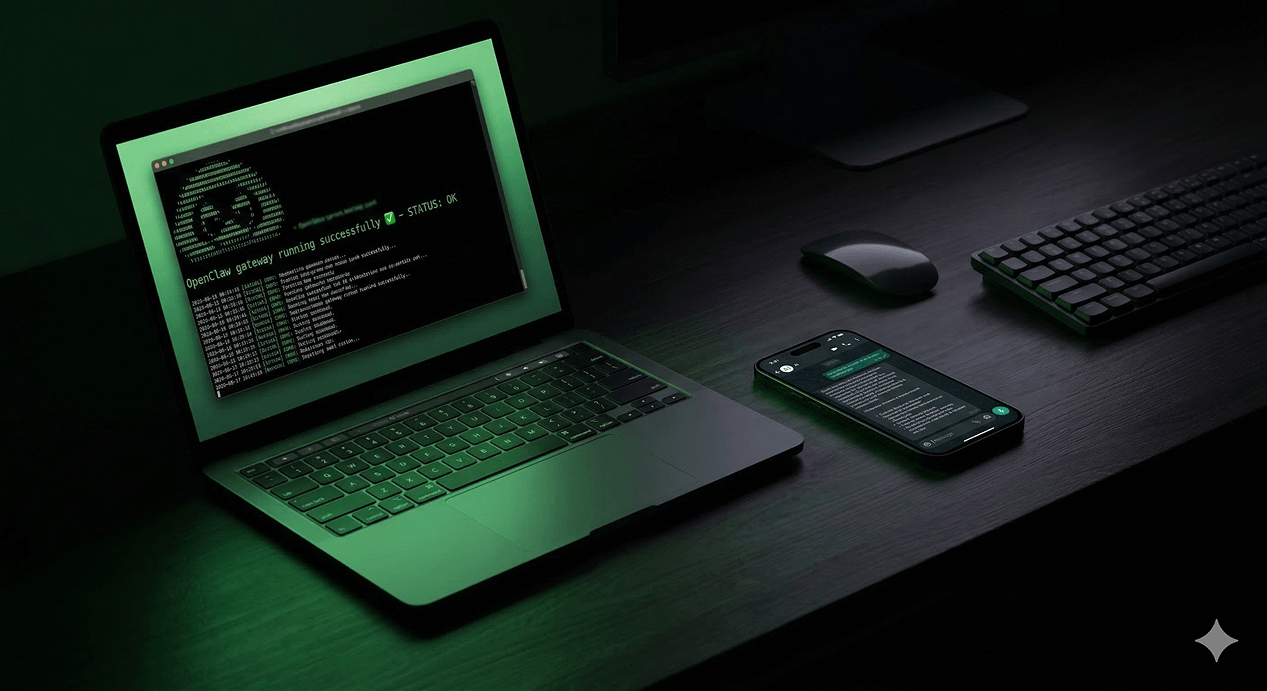
Something happened in early 2026 that caught a lot of people off guard. A self-hosted AI agent called OpenClaw — formerly known as Clawdbot and then Moltbot — exploded to over 200,000 GitHub stars, becoming one of the fastest-growing repositories in open source history. The reaction from people who actually installed it was consistent. "OpenClaw is Jarvis. It already exists." "After years of AI hype, I thought nothing could faze me. Then I installed OpenClaw. From nervous 'hi what can you do?' to full throttle — design, code review, taxes, PM, content pipelines... AI as teammate, not tool."
What makes OpenClaw different from every other AI assistant is what it runs on and where it lives. OpenClaw is a self-hosted personal AI assistant that runs on your own devices and communicates through the apps you already use — WhatsApp, Telegram, Slack, Discord, and more. It can answer questions, automate tasks, interact with your files and services, and even speak or listen on supported devices, all while keeping you in complete control of your data.
For UAE businesses — where WhatsApp is the primary communication channel for everything from client conversations to internal team coordination — OpenClaw connected to Claude and running on your own hardware is one of the most practical AI setups available in 2026.
This is the complete setup guide. Everything from installing Node.js to sending your first WhatsApp message through your own private AI assistant.
What OpenClaw Actually Is — Before You Install Anything
Think of OpenClaw like a pet lobster. It needs a tank — that's your computer or a VPS. OpenClaw runs locally, on your hardware. It needs food — that's your LLM API key. OpenClaw doesn't have its own brain. You feed it Claude, GPT, DeepSeek, or even a local model through Ollama. The smarter the model, the smarter the lobster. And it needs rules — that's SOUL.md, a plain text file where you write down how it should behave.
The Gateway runs on port 18789 by default. It figures out which agent should handle your message, loads the right session, and passes it to the LLM. The agent runtime reads your workspace files — AGENTS.md, SOUL.md, TOOLS.md — loads any relevant Skills, searches memory for context from past conversations, and builds a system prompt. Then it sends all of that to your configured LLM — Claude, GPT, whatever you chose.
The Golden Rule: OpenClaw is only as smart as the prompt it constructs, and you control every file that goes into that prompt. Edit SOUL.md and you change who the agent is. Edit HEARTBEAT.md and you change what it watches for. Every behavior you see is traceable to a file on your disk. That's not a limitation — it's the feature.
What You'll Need Before Starting
- A computer running macOS, Windows, or Linux — or a VPS (recommended for 24/7 operation)
- Node.js 22 or higher
- An Anthropic API key (from console.anthropic.com) — or an OpenRouter key for model flexibility
- A WhatsApp account on a phone you can scan a QR code with
- About 20 minutes
The full installation from downloading Node.js to sending your first message takes about 15 to 20 minutes.
Step 1: Install Node.js 22
OpenClaw requires Node.js 22. Earlier versions are not supported and will produce errors.
macOS (using Homebrew — recommended):
macOS/Linux (using nvm — recommended for version management):
Windows: Download the Node.js 22 LTS installer from nodejs.org. Run the installer, accept all defaults, and restart your terminal. Verify with:
Ubuntu/Debian Linux:
Step 2: Install OpenClaw
OpenClaw works on macOS, Windows, and Linux. The one-liner installs Node.js and everything else for you.
The fastest method — one-liner installer:
Via npm (all platforms):
Via pnpm (recommended for faster install):
Via bun:
Verify the installation:
If you see a version number, you're good to proceed. If you get "command not found", your global npm bin directory may not be in your PATH — run npm config get prefix to find where global packages install, then add that /bin directory to your PATH.
Step 3: Run the Onboarding Wizard
The preferred setup is to run the onboarding wizard in your terminal. This is the single most important step — it configures your API key, sets up the gateway as a persistent background service, and creates your workspace files.
The --install-daemon flag installs OpenClaw as a system service. On macOS, this creates a launchd daemon. On Linux, a systemd service. After this step, the gateway starts automatically every time your machine boots without any manual action.
The wizard will walk you through these steps:
1. Select your model provider: Choose Anthropic for Claude. Other options include OpenAI, OpenRouter (recommended if you want to switch between models easily), Ollama (for fully local models), and others.
2. Enter your API key:
For Anthropic:
- Go to console.anthropic.com
- Create an account or sign in
- Go to API Keys and click Create Key
- Copy the key — it starts with
sk-ant- - Paste it into the wizard when prompted
For OpenRouter (recommended for UAE users wanting model flexibility):
- Go to openrouter.ai and create a free account
- Go to Keys and create an API key
- OpenRouter gives access to Claude, GPT, Gemini, DeepSeek, and others through a single key
3. Select your model:
For Claude via Anthropic directly:
For Claude via OpenRouter:
The recommended configuration for most UAE business use cases:
4. Set gateway port: Accept the default 18789 unless you have a specific reason to use a different port.
5. Install daemon: Choose Yes — this ensures OpenClaw runs 24/7 and restarts automatically after reboots.
When the wizard completes, your browser will open automatically showing the OpenClaw Gateway dashboard at http://127.0.0.1:18789.
Step 4: Verify Your Installation
Run a health check to confirm everything is working:
You should see output like:
Check gateway status:
Send a test message directly from the CLI to confirm the LLM connection is working:
You should get a response from Claude within a few seconds. If you do — your OpenClaw core is working.
Step 5: Explore Your Workspace Files
OpenClaw reads operating instructions and memory from its workspace directory. By default it uses ~/.openclaw/workspace and creates starter files automatically on setup — AGENTS.md, SOUL.md, TOOLS.md, IDENTITY.md, USER.md, and HEARTBEAT.md.
Open the workspace directory:
Here's what each file does:
SOUL.md — Who your agent is: SOUL.md defines how the agent communicates — personality, tone, and boundaries. By default it starts with: "You're not a chatbot. You're becoming someone. Be genuinely helpful, not performatively helpful. Skip the 'Great question!' and 'I'd be happy to help!' — just help. Have opinions. You're allowed to disagree, prefer things, find stuff amusing or boring."
Edit this file to give your agent the personality and communication style that fits your business:
Example customisation for a UAE business assistant:
AGENTS.md — What your agent does each session: This file sets safety rules, group chat behaviour, and session instructions. Leave it as default to start — you can customise it once you understand how OpenClaw behaves.
USER.md — What your agent knows about you: Add your personal context here — your name, role, preferences, and anything the agent should always remember about you.
MEMORY.md — Persistent memory across sessions: This file is optional — create it when you want OpenClaw to remember specific things permanently:
Step 6: Connect WhatsApp
This is the step most UAE businesses are most excited about — connecting OpenClaw to WhatsApp so you can message your AI assistant from your phone exactly as you'd message a contact.
OpenClaw supports WhatsApp Web pairing — it shows a QR code that you scan with your assistant phone.
Important note on WhatsApp accounts: For personal use, scan with your own personal WhatsApp. For business use — especially if you want multiple team members to interact with the assistant — use a dedicated WhatsApp Business account on a separate SIM. This avoids any risk to your primary number and gives you a professional setup.
Run the channel setup wizard:
Select WhatsApp from the list of available channels.
OpenClaw will display a QR code in your terminal. On your phone:
- Open WhatsApp
- Tap the three dots menu (Android) or Settings (iPhone)
- Tap Linked Devices
- Tap Link a Device
- Scan the QR code shown in your terminal
Once scanned, the agent logs a success message indicating it's ready to receive WhatsApp messages. You can test it immediately by sending a "hello" message from another phone.
Configure WhatsApp security — who can message your agent:
Open your OpenClaw config file:
Add your allowed phone numbers — only these numbers can interact with your agent:
The allowFrom list restricts which phone numbers can interact with your agent. In group chats, requireMention: true means OpenClaw only responds when explicitly mentioned — preventing it from responding to every message in a busy group.
Restart the gateway to apply the changes:
Test it — send "Hello, who are you?" from your WhatsApp to the connected number. You should receive a response from Claude within seconds.
Step 7: Connect Telegram (Optional — Recommended for Teams)
For team use, Telegram is often more practical than WhatsApp because bot accounts work more cleanly with Telegram's API. Many UAE businesses run OpenClaw on Telegram for team automation while keeping the WhatsApp connection for personal and client use.
Create a Telegram bot:
- Open Telegram and search for @BotFather
- Send
/newbot - Choose a name for your bot (e.g., "Joyboy Assistant")
- Choose a username ending in
bot(e.g.,joyboyassistant_bot) - BotFather will give you a token — copy it
Add Telegram to OpenClaw:
Select Telegram and paste your bot token when prompted.
Test by opening your Telegram bot and sending a message. The response comes back through Telegram, using the same Claude brain as your WhatsApp connection.
Step 8: Install Business Skills From ClawHub
OpenClaw supports ClawHub, a lightweight skill registry. When enabled, the agent can automatically search for relevant skills and install them on demand.
The ClawHub registry has over 5,700 skills. Skills teach OpenClaw how to do specific tasks reliably — instead of figuring out a task from scratch every time, it follows the proven instructions in the skill file.
Enable ClawHub in your config:
Install skills relevant to UAE business operations:
Email management:
Web research:
File management:
Calendar integration:
WhatsApp-specific MCP tools: Install the WhatsApp MCP skill for programmatic message handling:
This adds specific tools like whatsapp_send and whatsapp_receive to your agent's toolkit, allowing it to programmatically construct messages and parse incoming data structures.
After installing skills, restart the gateway:
Verify skills are loaded:
Step 9: Build Your First Business Automation
With OpenClaw running and connected to WhatsApp and Claude, here are practical automations to set up immediately for a UAE business context.
Morning briefing automation:
Add this to your HEARTBEAT.md file — OpenClaw's scheduled task system:
Lead response automation:
When a new WhatsApp message arrives from an unknown number (potential lead), have OpenClaw respond professionally:
Add to AGENTS.md:
Daily operations summary:
Step 10: Connect to n8n for Advanced Workflow Integration
If you've set up n8n (see our previous guide), you can connect OpenClaw to your n8n instance using webhooks — creating a powerful combination where OpenClaw handles conversational AI and n8n handles structured workflow automation.
Add a webhook skill to OpenClaw:
In your n8n instance, create a webhook node and copy the URL. Then add it to OpenClaw's TOOLS.md:
Now you can message OpenClaw on WhatsApp: "Generate an invoice for TechCorp for AED 15,000 for the web development project" — and it will trigger your n8n workflow, generate the invoice, and send it automatically.
Step 11: Running OpenClaw 24/7 on a VPS
For a UAE business that needs OpenClaw always available — responding to WhatsApp messages at any hour, running scheduled heartbeats reliably — running it on a VPS rather than your personal machine is the right production setup.
The same installation steps apply on a VPS. Additional steps for production VPS deployment:
Expose the gateway securely with Tailscale: OpenClaw supports Tailscale Serve/Funnel for the Gateway dashboard and WebSocket for remote access.
Monitor your instance:
Keep OpenClaw updated:
Useful Commands Reference
What You've Built
By the end of this setup you have a private AI assistant — powered by Claude, running on your own hardware, accessible via WhatsApp — that knows your business, remembers your preferences, can be taught new skills, and runs scheduled tasks while you sleep.
"2026 is already the year of personal agents." For UAE businesses that live on WhatsApp and need an AI assistant that fits into the way they already work — not the other way around — OpenClaw is the most practical implementation of that reality available right now.
The setup takes an afternoon. The assistant works for you indefinitely after that.
Want OpenClaw set up and running for your business — without the technical overhead?
At Joyboy, we install, configure, and customise OpenClaw for UAE businesses — connecting it to Claude, WhatsApp, and your existing business tools so it's working for you from day one. Talk to us about your automation setup.