

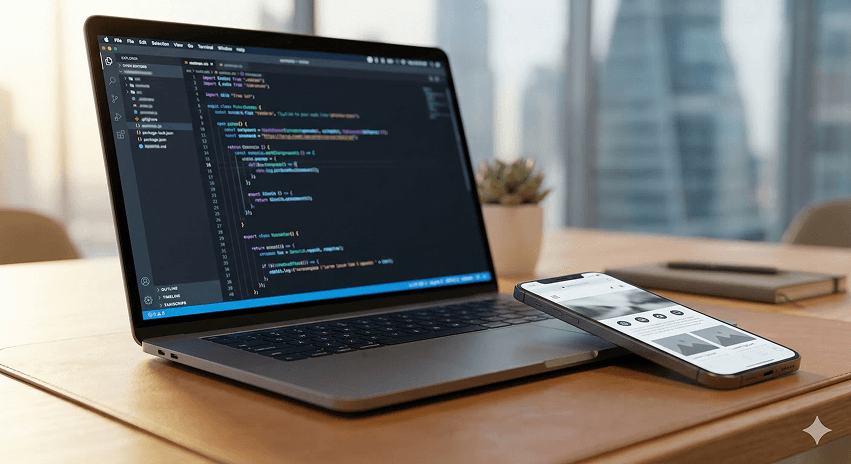
A few years ago, building a website meant either hiring a developer, spending weeks learning code, or settling for a drag-and-drop builder that looked like every other website on the internet. In 2026, that's no longer the reality. Tools like Cursor and Claude have made it genuinely possible for someone with a clear vision and basic computer literacy to build a real, custom, production-ready website — without writing every line of code from scratch.
This is not a guide about vibe coding your way to a broken prototype. It's a practical, step-by-step walkthrough of how to use Cursor and Claude together to build a complete website — from setting up your environment to deploying something live that actually works.
What Is Cursor and Why Does It Matter in 2026
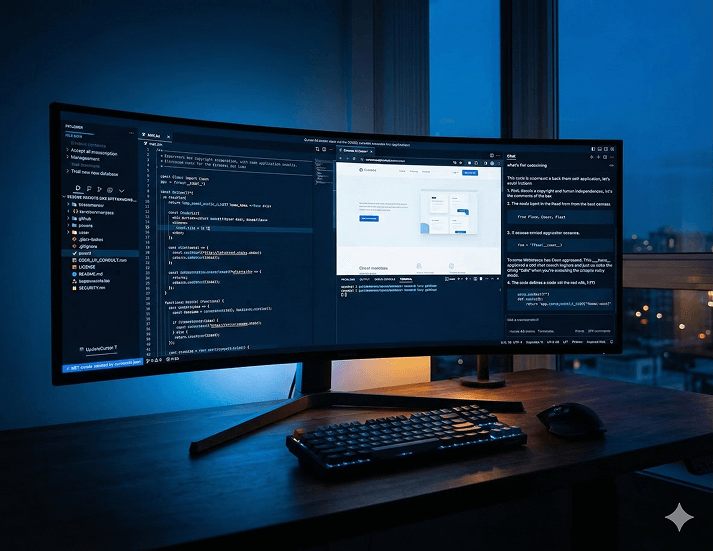
Cursor is an AI-native code editor built on VS Code by Anysphere, Inc. It's not a plugin or an extension — it's a standalone IDE that has been rebuilt from the ground up around AI-first workflows. Where GitHub Copilot felt like an AI assistant whispering code suggestions as you typed, Cursor in 2026 is a full-blown IDE built around artificial intelligence — with multi-file reasoning, long-running agents, and repository-wide understanding.
The latest version, Cursor 2.6, introduced interactive UIs in agent chats, MCP Apps that support interactive interfaces like charts from Amplitude and diagrams from Figma directly inside Cursor, and team marketplaces for sharing private plugins.
What makes Cursor particularly powerful for website building is its Composer feature — an agent that can plan and execute changes across your entire project simultaneously. You describe what you want, and Cursor reads your codebase, writes code that fits your existing structure, and implements changes across multiple files at once.
What Is Claude and How Does It Fit In
Claude is Anthropic's AI model — and it's one of the models available directly inside Cursor. Cursor supports GPT-4.1, GPT-5.2, Claude Sonnet 4.6 with a 1M token context window in beta, Gemini 3 Pro, and Grok Code models.
Claude is particularly well-suited to web development work because of its large context window — it can hold your entire project in context at once, understand how different files relate to each other, and make changes that are consistent with your existing code rather than creating conflicts. For complex, multi-file website projects, this matters enormously.
You can also use Claude directly at claude.ai alongside Cursor — for planning your site structure, drafting content, generating component ideas, or troubleshooting issues that need a conversational approach rather than direct code editing.
Step 1: Download and Install Cursor
Visit cursor.sh and download the installer for your operating system — Windows, macOS, or Linux, including ARM.
On Windows: Run the downloaded installer. Accept the default installation path, choose whether to add Cursor to your PATH, and launch it from the Start menu when complete. If Windows Defender or endpoint security flags the installer, allow it from the official Cursor source — the installer is signed.
On macOS:
Open the downloaded .dmg file, drag Cursor to your Applications folder, and launch it. On first launch, macOS may ask you to confirm opening a downloaded application — click Open.
On Linux: Download the latest Cursor AppImage using:
Or for Debian/Ubuntu:
The current latest version as of March 2026 is 2.6.14, released March 8, 2026.
Step 2: Sign In and Choose Your Plan
On first launch, Cursor will ask you to sign in with a GitHub, Google, or email account.
The Hobby plan is free with no credit card required — it includes limited Agent requests and Tab completions, enough to evaluate the tool before upgrading. For a serious website build, you'll want at least the Pro plan.
Here's a quick breakdown of the current plans:
- Hobby (Free) — Limited completions, 50 slow premium model requests per month. Good for testing.
- Pro ($20/month) — 500 fast premium model requests, unlimited standard completions, priority response times, and access to all Cursor AI features. The right starting point for most website projects.
- Pro+ ($60/month) — Everything in Pro with 3x the usage credits. For heavier daily use.
- Ultra ($200/month) — 20 times the usage of the Pro plan and priority access to new features. For developers who live inside Cursor all day.
- Teams ($40/user/month) — Pro features plus centralized billing, SSO, and admin controls for development teams.
Pro tip: Use Auto mode to stretch your credits — it's unlimited on all paid plans. Reserve manually selected models like Claude Sonnet or GPT-4o for complex tasks where you specifically need their capabilities.
Student offer: Verified students can get one year of Cursor Pro free by signing up with a school email.
Step 3: Set Up Your First Project
Once Cursor is installed and you're signed in, create a new folder on your computer for your website project. Name it something clear — my-business-website for example.
Open Cursor and use File > Open Folder to open your project folder. You'll see an empty file explorer on the left — this is where your project files will live.
Now open the AI chat panel on the right side of the screen. This is where you'll communicate with the AI throughout your project.
Configure your model: Click the model selector at the top of the chat panel and choose Claude Sonnet 4.6 for the best balance of capability and context handling on a web project. If you're on a free plan, select Auto to let Cursor choose the most appropriate model for each task.
Step 4: Plan Your Website With Claude Before Writing Code
Before you ask Cursor to write a single line of code, spend a few minutes planning with Claude. This is one of the most important steps — and one of the most skipped.
Open the Cursor chat and describe your website clearly:
Claude will respond with a recommended file structure, the main components you'll need, and a suggested approach. Read this carefully — it's your build plan. If anything seems wrong or doesn't match what you need, correct it now in conversation before any code is written.
Step 5: Scaffold Your Project
With your plan confirmed, ask Cursor to set up the project structure. In the chat panel, type:
Cursor's Composer agent will create multiple files simultaneously — your package.json, layout files, page files, and navigation component — all in one pass. Review the files it creates in the left panel. They should match the structure Claude recommended.
To install dependencies and run the project locally, open the integrated terminal in Cursor (Terminal > New Terminal) and run:
Open your browser and go to http://localhost:3000 — you should see your website skeleton running locally.
Step 6: Build Page by Page Using Composer
This is where the real speed advantage of Cursor becomes clear. Rather than writing component by component, you describe what you want and Composer builds it across multiple files simultaneously.
Building the homepage:
Composer will write the complete homepage component, update the relevant files, and implement everything in one pass. Open your browser — the changes appear immediately thanks to Next.js hot reload.
Work through each page the same way — one clear prompt per page, describing the sections you need, the content structure, and any specific functionality.
Step 7: Add Real Content and Images
Once the structure and styling are solid, replace the placeholder content with your real business content. You can do this directly by editing files, or by asking Cursor:
For images, use a folder called /public/images in your project. Drop your real images in there and ask Cursor to update the image paths throughout the project.
If you don't have professional images yet, you can use placeholder services like Unsplash or generate AI images — just update them before launch.
Step 8: Add a Contact Form
A contact form requires a bit more setup because it needs to actually send emails. Ask Cursor to handle this:
Cursor will set up the form component, the API route that handles submissions, and the email sending logic. You'll need to sign up for a free Resend account (resend.com) and add your API key to a .env.local file — Cursor will tell you exactly what environment variables to set.
Step 9: Make It SEO-Ready
Before going live, ask Cursor to handle the SEO fundamentals:
This ensures your website is properly readable by search engines from day one — something that takes significant manual effort to set up correctly without AI assistance.
Step 10: Test Everything Before Launch
Ask Cursor to help you test thoroughly:
Also manually test the website yourself on your phone. Open Chrome DevTools (F12), click the mobile device toggle, and check how every page looks on iPhone SE size, iPhone 14 size, and iPad size. Fix any layout issues by describing them to Cursor.
Step 11: Deploy Your Website Live
The fastest way to deploy a Next.js website in 2026 is Vercel — it's free for personal projects and takes about five minutes to set up.
- Push your project to a GitHub repository
- Go to vercel.com and sign in with GitHub
- Click Add New Project and select your repository
- Vercel detects Next.js automatically — click Deploy
- Your website is live in under two minutes at a
.vercel.appURL
To connect your own domain, go to your project settings in Vercel, add your domain name, and update your DNS records at your domain registrar to point to Vercel's servers. Vercel handles SSL certificates automatically.
Add your environment variables (like your Resend API key) in the Vercel dashboard under Settings > Environment Variables before your first production deployment.
Using Claude Alongside Cursor for Ongoing Updates
Once your site is live, the combination of Cursor and Claude makes ongoing updates fast and low-friction.
For content updates: Open the relevant file in Cursor and ask Claude to update the content directly. No CMS required for simple changes.
For new pages: Describe the new page to Cursor the same way you built the original ones — one clear prompt, Composer handles the rest.
For debugging: If something breaks, paste the error message into the Cursor chat. Claude will identify the cause and suggest or implement the fix.
For performance improvements: Ask Cursor to audit your project for performance issues — it will identify large images, inefficient code, and missing optimisations that affect your Core Web Vitals scores.
What This Combination Actually Changes
The honest summary is this: Cursor and Claude don't replace the need for good judgment about what to build and how to present your business. They remove the technical barrier that used to sit between a clear vision and a working website.
Over 90% of developers at Salesforce now use Cursor, driving double-digit improvements in cycle time, PR velocity, and code quality. For businesses without dedicated developer teams, the impact is even more direct — the difference between having a professional website and not having one.
The quality of what you build with these tools still depends on the clarity of what you ask for, the care you take reviewing the output, and the judgment you apply at every step. The tools handle the implementation. The thinking still has to be yours.
Want a professional website without the back-and-forth?
At Joyboy, we build production-grade websites using the latest AI-assisted development tools — faster, cleaner, and built to perform. Talk to us about your website project.